Blog

  • Free UPI Payment Gateway For WooCommerce

    If you run an Indian WooCommerce store, you already know the math: every Razorpay, Cashfree, or PayU transaction quietly skims 2% off your margin. On a ₹1,000 order that’s ₹20 gone before shipping, packaging, or returns. On a ₹10,000 order, it’s a ₹200 leak — every order, forever.

    UPI changed Indian payments by making bank-to-bank transfers free. So why are WooCommerce stores still routing UPI payments through paid aggregators that charge a percentage on top of a transfer that costs the bank nothing?

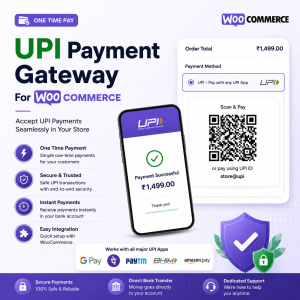
    They don’t have to. Our Free UPI Payment Gateway for WooCommerce plugin lets your customers pay you directly via UPI — Google Pay, PhonePe, Paytm, BHIM, anything — by scanning a QR code generated from your own UPI ID. Zero transaction fees. No KYC paperwork with a payment processor. No middleman. The money lands directly in your bank account.

    In this guide we’ll walk through what the plugin does, how to install and configure it, and how the payment flow looks for both you and your customer.

    Why a free UPI gateway makes sense for small Indian stores

    The big payment aggregators are built for scale. If you’re processing thousands of orders a day, their auto-reconciliation, instant settlement, and chargeback protection are worth the 2%. But a lot of WooCommerce stores aren’t there yet. They’re:

    • Solo founders or small teams selling 5–50 orders a day
    • Boutique brands shipping handcrafted goods
    • Service businesses (coaching, courses, consultations) with predictable order volume
    • Niche stores where every rupee of margin matters

    For these stores, manually verifying 20 UPI transfers a day takes 10 minutes — and saves thousands of rupees a month in transaction fees. That’s the use case this plugin is built for.

    What the plugin does

    Free UPI Payment Gateway for WooCommerce adds a new payment method to your checkout. When a customer chooses it:

    1. They’re redirected to a payment page that displays a QR code generated from your UPI ID and the order total
    2. They scan it with any UPI app and pay you directly
    3. They click “I have paid” and (optionally) submit their UPI Transaction ID and a screenshot
    4. The order goes to On hold so you can verify the transfer in your bank or UPI app before fulfilling

    The order number is automatically embedded in the UPI transaction note, so when the payment lands in your account it’s labelled with the WooCommerce order ID — no guesswork in reconciliation.

    Key features

    • Free forever — no transaction fees, no monthly charges, no API keys
    • One-click QR payment — works with every UPI app in India
    • Mobile UPI deep link — on phones, customers can tap Open in UPI app and skip the scan entirely
    • Configurable Transaction ID field — show or hide it, set it as mandatory or optional
    • Configurable screenshot upload — same: show/hide, mandatory/optional
    • Order ID in transaction note — automatic reconciliation reference
    • Min/max amount limits — UPI’s per-transaction cap is ₹1,00,000; gate large orders
    • Admin verification view — see the submitted Transaction ID and screenshot directly on the order edit screen
    • Email notifications — admin order emails include the customer’s submitted UPI details
    • HPOS compatible — works with WooCommerce’s modern High-Performance Order Storage
    • Block checkout compatible — supports both the classic shortcode checkout and the new Cart/Checkout Block
    • Hardened uploads — screenshot files stored in a protected directory with type and size validation

    Step-by-step: install and configure the plugin

    Step 1: Install the plugin

    1. Download the plugin zip from the plugin page
    2. In your WordPress admin, go to Plugins → Add New → Upload Plugin
    3. Choose the zip file and click Install Now
    4. Click Activate Plugin

    WooCommerce must be installed and active first. If it isn’t, the plugin will show a notice prompting you to install it.

    Step 2: Confirm your store currency is INR

    UPI only supports Indian Rupees, so the plugin auto-hides itself on stores using other currencies.

    Go to WooCommerce → Settings → General and make sure Currency is set to Indian rupee (₹) — INR. Save changes.

    Step 3: Configure the UPI gateway

    1. Navigate to WooCommerce → Settings → Payments
    2. Find UPI Payment in the list and toggle it on
    3. Click Manage (or Set up) to open the settings panel

    You’ll see the configuration form. Here’s what each field does:

    Enable / Disable Master switch for the gateway. Leave it ticked.

    Title What customers see at checkout. Default: “UPI Payment (Scan QR)”. You can change this to anything — “Pay via UPI”, “Direct Bank Transfer (UPI)”, etc.

    Description Short text shown beneath the title. A line like “Pay using any UPI app — Google Pay, PhonePe, Paytm — by scanning a QR code” reassures customers who haven’t seen this option before.

    UPI ID (VPA) — required Your UPI handle, e.g. yourname@okhdfcbank, business@paytm, 9876543210@ybl. This is where customer payments will arrive. Double-check the spelling — wrong VPAs send money to strangers, and UPI doesn’t have a refund mechanism for that.

    Merchant / Payee Name Shown inside the customer’s UPI app while paying. Defaults to your site name. Use your registered business name so customers know they’re paying the right entity.

    Customer Instructions Free-form text shown above the QR code. The default is fine for most stores:

    1. Scan the QR code with any UPI app.
    2. Verify the amount and pay.
    3. Click “I have paid” below and submit your transaction reference.

    Step 4: Configure verification inputs

    This is where you decide what proof you want from customers after they pay.

    Transaction ID Field — recommended on Adds a field where the customer enters their UPI Transaction ID (the 12-digit reference UPI apps generate). This makes manual reconciliation much faster.

    Require Transaction ID — recommended on Forces customers to fill in the Transaction ID before they can submit. Without this, lazy customers click “I have paid” and disappear, leaving you to chase them down.

    Screenshot Upload — optional Lets customers attach a payment confirmation screenshot. Useful for higher-value orders or if you’ve had disputes in the past.

    Require Screenshot — situational Only enable this if you genuinely audit screenshots. Otherwise it just adds friction and abandonment.

    Step 5: Configure advanced settings

    Order Status After Customer Confirms — recommended On hold This is critical. On hold means the order is parked until you manually verify the UPI transfer. Don’t change it to “Processing” unless you have a verified, automated way to confirm payments — otherwise you’ll start shipping orders that were never actually paid for.

    Minimum Order Amount Hide the gateway for very small orders if you want to push customers toward another method.

    Maximum Order Amount UPI’s per-transaction limit is typically ₹1,00,000 (₹2,00,000 for some apps and banks). Setting a max of ₹100000 here prevents customers from selecting UPI on orders that will fail at the bank level.

    Click Save changes. You’re done.

    Step 6: Test with a real order

    Don’t trust a gateway that hasn’t been tested with actual money.

    1. Open your store in an incognito window
    2. Add a low-value product to cart (₹1 if you can — many stores keep a “test product” for exactly this purpose)
    3. Go to checkout, select UPI Payment, place the order
    4. Scan the QR with your phone, pay yourself, click I have paid, submit a fake transaction ID
    5. Check that the order appears under WooCommerce → Orders with status On hold
    6. Open the order and confirm the Transaction ID and confirmation timestamp are saved against it
    7. Verify ₹1 actually arrived in your bank account

    If all six checks pass, you’re production-ready.

    How the customer experience looks

    When a customer chooses UPI Payment at checkout, here’s the exact flow they see:

    1. Checkout page — UPI Payment appears as a payment option with your title and description
    2. Place Order — they’re redirected to a clean payment page showing the amount, order number, instructions, and a QR code
    3. Pay — they either scan the QR with any UPI app, or on mobile, tap Open in UPI app to launch their default UPI app pre-filled with the amount and your VPA
    4. Confirm — back on your site, they click I have paid, optionally enter the Transaction ID and upload a screenshot
    5. Submit & Place Order — they’re redirected to the WooCommerce thank-you page

    Your customer never has to type the amount, the recipient VPA, or the transaction note. Everything is pre-filled by the QR code, so there’s no risk of them sending the wrong amount or paying the wrong account.

    How you verify payments as the merchant

    Because there’s no automatic webhook from UPI to your site, you do a quick manual check before shipping:

    1. New UPI orders arrive in WooCommerce → Orders with status On hold
    2. Open the order — at the top right you’ll see a UPI Payment Details box showing:
      • The exact time the customer clicked “I have paid”
      • The Transaction ID they entered
      • The screenshot, if they uploaded one
    3. Open your bank app or UPI app and look at incoming credits
    4. Match the Transaction ID (or the order number in the transaction note) with the order
    5. If matched, change the order status from On hold to Processing (or Completed for digital products)

    For most stores this takes 30 seconds per order. If you batch it once or twice a day, it’s 10 minutes total — far cheaper than 2% on every transaction.

    Tips for running a UPI-only store smoothly

    Pin your bank app’s notification access. If your bank app sends instant credit alerts, fulfillment becomes near real-time.

    Use a dedicated UPI ID for your store. Don’t use your personal name@okhdfcbank — open a separate current account or use a UPI handle linked to a business account. Easier accounting, easier GST filing, cleaner audit trail.

    Keep a fallback gateway enabled too. Some customers prefer cards or net banking. Run UPI as the default but keep one paid gateway available for the rare customer who needs it.

    Add the order number reminder in your description. Something like “After payment, please check that the order number appears in your UPI app’s transaction note” — gives customers extra confidence.

    Monitor the On hold queue. Set up a daily reminder to clear pending verifications. Slow merchant response is the #1 reason customers complain about manual UPI gateways.

    Frequently asked questions

    Is this plugin really free? Yes. It’s free to download and there are no transaction fees because the plugin doesn’t sit between you and the customer — payments go directly from their bank to yours via UPI.

    Does the plugin auto-verify payments? No. UPI doesn’t expose a free public API for arbitrary VPAs to receive payment notifications. The plugin gives you all the information you need (Transaction ID, screenshot, order number in the transaction note) for fast manual verification.

    Can I use this with currencies other than INR? No. UPI is an Indian payment system that only supports Indian Rupees. The gateway is automatically hidden on non-INR stores.

    What happens if a customer clicks “I have paid” without actually paying? The order goes to On hold status, not Processing. You won’t accidentally ship anything because nothing moves until you verify the payment manually and update the status yourself.

    Does this work with the new WooCommerce Cart/Checkout Block? Yes. The plugin includes a Blocks integration so it shows up in both the classic shortcode checkout and the modern Block-based checkout.

    Where are uploaded payment screenshots stored? In /wp-content/uploads/upi-payment-screenshots/. The folder is protected against directory listing, files are validated for type (JPG/PNG/WEBP only) and size (max 5 MB), and filenames are randomised.

    Can I customise the QR code or payment page styling? The CSS is in assets/css/upi-checkout.css — you can override it via your child theme. The QR code itself is generated client-side from your UPI ID and the order total, so it always reflects current data.

    Is this WooCommerce HPOS compatible? Yes. The plugin declares full compatibility with WooCommerce’s High-Performance Order Storage.

    Wrap-up

    If you’re an Indian WooCommerce merchant tired of paying 2% to push UPI transactions through aggregators, this plugin gives you back that margin. Setup takes ten minutes, the customer experience is smooth, and verification is a daily habit you’ll have down inside a week.

    Download Free UPI Payment Gateway for WooCommerce →

    If you have questions, run into issues during setup, or want to suggest features, drop a comment below or reach out to us at CodeSlice.in.